
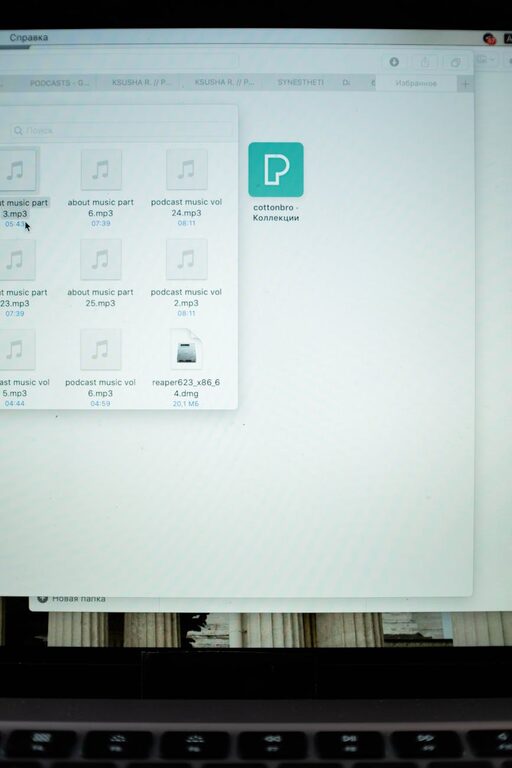
Keeping your computer files organized is essential for improving productivity and reducing stress. Whether you work from home, attend school online, or simply use your computer for everyday tasks, a clean and well-structured file system saves time and frustration. In this post, we’ll explore practical tips and strategies you can use right now to organize files on your computer efficiently.
Why Organize Your Files?
Having a disorganized computer can cause several issues:
– Wasting time searching for documents
– Accidentally deleting important files
– Hard drive clutter, which might slow down performance
– Increased difficulty in backing up your data
By setting up a clear system, you create a smoother workflow and improve your digital environment.
Step 1: Plan Your Folder Structure
A thoughtful folder structure is the foundation of file organization.
Use Broad Categories First
Start with general folders like:
– Work
– Personal
– School
– Finances
– Media (photos, videos, music)
Create Subfolders for Specific Projects or Topics
Inside your broad folders, include subfolders that are more specific. For example, within “Work,” you might have:
– Reports
– Presentations
– Clients
– Meeting Notes
This hierarchy helps keep related files grouped and easy to find.
Keep It Simple
Avoid creating too many layers of folders. Going beyond three levels can sometimes complicate navigation instead of simplifying it.
Step 2: Name Your Files Clearly
Good file names are crucial to finding content quickly.
– Use descriptive names that tell you what the file contains.
– Include dates if applicable, using a consistent format like YYYY-MM-DD (e.g., 2024-06-01_ProjectReport.docx).
– Avoid vague names like “document1” or “newfile.”
Tips for File Naming
– Use underscores or hyphens instead of spaces for better compatibility across systems.
– Be consistent with capitalization and abbreviations.
– Keep names concise but informative.
Step 3: Regularly Delete or Archive Unneeded Files
Over time, your computer can fill up with duplicates, old downloads, or outdated documents.
Set a Schedule
Decide on a regular time—weekly or monthly—to review your files.
Move Inactive Files to an Archive
For files you want to keep but don’t need daily, create an “Archive” folder or transfer them to an external drive or cloud storage.
Use Disk Cleanup Tools
Many operating systems have built-in tools to help find and remove unnecessary files safely.
Step 4: Take Advantage of Search and Tagging Features
Modern operating systems include powerful search tools that recognize file names, contents, and metadata.
Use Tags or Labels
If your OS supports it (like macOS Finder tags or Windows File Explorer tags), apply color-coded tags to files by project, priority, or type.
Use Keywords in File Names or Metadata
Adding relevant keywords makes search results more accurate.
Step 5: Backup Your Files Regularly
An organized file system is only useful if your data is safe.
– Use cloud storage services like Google Drive, Dropbox, or OneDrive for automatic syncing.
– Consider an external hard drive for full backups.
– Set a backup schedule—weekly or bi-weekly depending on how often you update files.
Step 6: Utilize File Management Software
If your needs are complex, some tools can help you organize and manage files more effectively.
– File renaming tools for batch renaming
– Duplicate file finders to clean up copies
– File synchronization software to keep folders consistent across devices
Bonus Tips for Maintaining Organization
– Create templates for repetitive documents to save time.
– Avoid desktop clutter by storing files in folders rather than placing them directly on your desktop.
– Keep downloads folder clean by sorting files into appropriate folders immediately after downloading.
– Use cloud notes or apps for reminders on file management tasks.
—
A well-organized computer system eliminates digital clutter and helps you locate important files without hassle. By planning a clear folder structure, naming files thoughtfully, regularly cleaning up, and backing up your data, you set yourself up for success. Start today with these simple steps, and you’ll wonder how you ever worked without them!